%20for%20Knowledge%20Base-2.png?width=200&height=43&name=Logo%20(white)%20for%20Knowledge%20Base-2.png)
In this article:
Frequently Asked Questions (FAQs)
Background and Benefits
Running external Events for your firm is not only time consuming, but it can be difficult for a number of reasons. It is not uncommon for a firm to invite the same people from a prior event, simply because chasing busy partners (lawyers or accountants) for a list of who should actually be invited, is time consuming and ineffective.
The Client Sense Events functionality works to increase the effectiveness, efficiency and Return On Investment (ROI) of your events. It does this in the following ways:
- Helping identify relevant people for an upcoming event (based on the right Industry, Location and Job Title).
- Allows Partners, Lawyers / Accountants to suggest contacts and see who they know that will be attending upcoming Events.
- Monitors for post-event follow up with attendees
- Automatically assesses the engagement that attendees have had with the firm both before and after events, to determine where there has been an increase in fees, connections, communication or meetings.
With the Client Sense events capability, you can strategically align and prioritize your events, maximize their value. This helps ensure the effort you are investing into events is not just for the sake of running yet another event, but to increase the engagement your firm has with attendees and ultimately drive more revenue.
Getting Started
Note: You will require Client Sense version 4.3 or newer. You can check the version of your system by clicking your name up the top right of the system, this will display the version number at the bottom of this menu.
Creating a new Event
-
To create a new Event, you will need to enter the Events Administration area by first clicking your name up the top right-hand corner of the system, and then selecting Events (Beta).
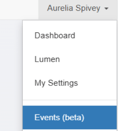
Note: This will be made available from the main menu once it is made available for general release. - Click + Create Event
- When prompted click + Create Event rather than Clone Event
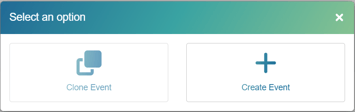
Note: Clone Event is not available at this stage of the early release. - Add the relevant Event Details
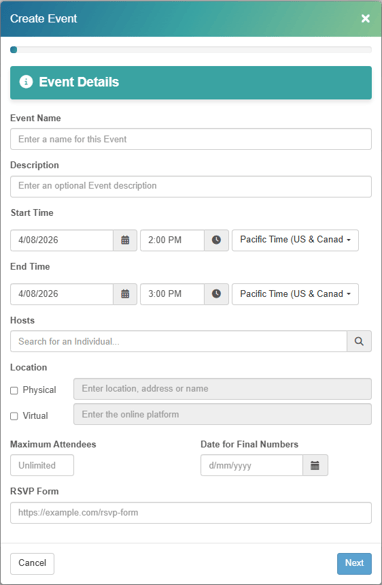
Event Name: Any name you choose, does not need to be unique. Note: This name becomes the event title when Event visibility on the next screen is set to All Users.
Description: Optional and not shown outside this Events Administration area.Start Time and End Time: Set the duration and local time for the Event. Shows if the Event is made visible.
Hosts: Set one or more people from the firm that will be hosting the event. Can also include external people or companies. Shows if the Event is made visible.
Location: Choose either or both Physical or Online. Shows if the Event is made visible.
Maximum Attendees: Set this if attendee numbers are limited, this helps you to ensure your final numbers do not exceed the maximum capacity for the event. Note: This will not limit registrations, it is for your reference only and is not shown outside of the Events Administration area.
Date for Final Numbers: Used to remember when final attendee numbers are needed ahead of the event. This is also for reference only, it does not stop people from registering once this date has passed and does not show outside of the Events Administration area. -
RSVP Form: Allows you to capture and record the RSVP / Event Registration link for this event. This is not required and does not show outside of the Events Administration area.
- Configure the relevant Settings
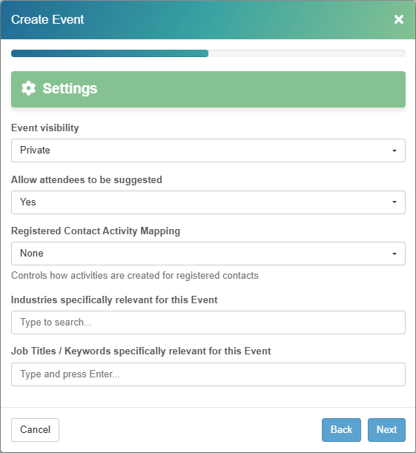
Event visibility:
Leaving this as Private means this event only appears in this Event Administration area, which is available only to Client Sense users or Client Sense administrators.
Changing this to All Users means that this event can be seen by anyone in the firm that has visibility of the Events Page.
Example of how an Event appears on the Firm Events page when Visible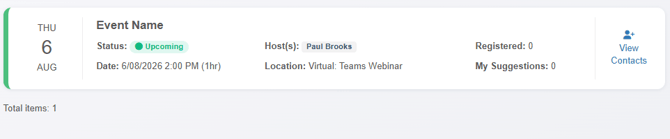
Note: Information on what this looks like for the partner, lawyer or accountant is available here in this article which can be repurposed for internal training.
Allow attendees to be suggested:
Yes: Setting this to Yes allows your partners, lawyers and accountants to suggest people they know to be invited for this event. This option will appear only if this Event has been made visible.
No: Leaving this as No will allow your partners, lawyers or accountants to see who is registered, but they will not be able to suggest people they would like to have invited.
Registered Contact Activity Mapping:
This setting allows you to choose if and how this Event will show as an Activity on each attendees Contact Card.
None: Setting this to None will not add the Event to the Contact Card of attendees.
Create Activity: This will add an Activity to the Contact Card for all registered attendees. The Activity will appear once they are registered and will include any upcoming events with a future date.
Example in a Contact Card when using Create Activity: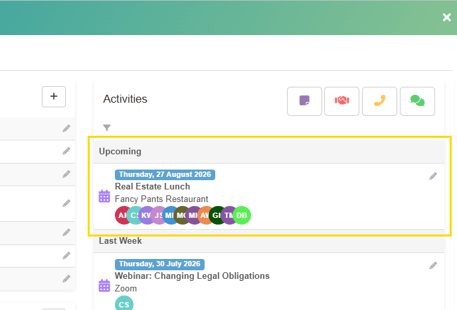
⚠️This will create an Association between each of the attendees. This is to help you later understand who might know each other and how (ie they have been together on 12 emails and attended two firm events together). For this reason, this can be extremely useful, however this option should only be used for smaller events (a lunch or dinner) where attendees where likely to be introduced or interact with each other.
Example of the association this Event creates when Create Activity is selected: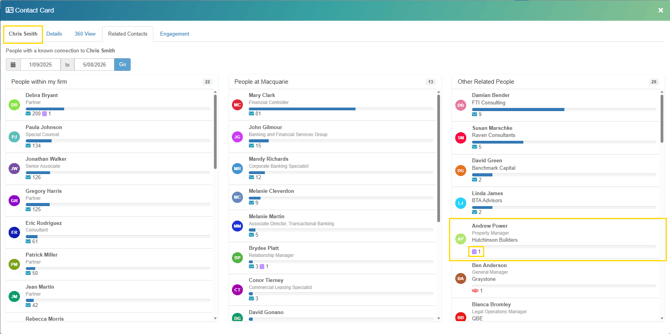
Create Separate Activities: This is best used for larger or online events (such as a webinar or large event) where the attendees were unlikely to have been introduced to all of the other attendees. This results in the Event still existing in each attendees Contact Card, but it will not list all the other attendees and will not associate the attendees as knowing each other.
Example of an Event with Create Separate Activities selected: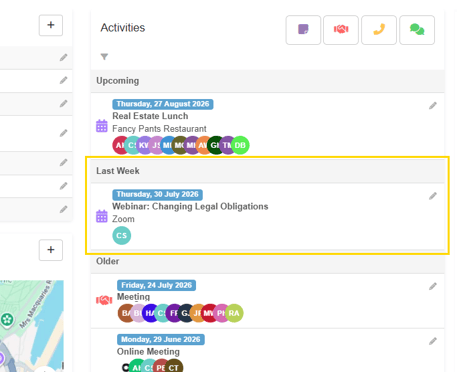
Industries specifically Relevant for this Event:
Note: Requires Company Insights to be enabled. Allows you to select one or more Industries that this event is specifically relevant to. Leave this blank if the event is not specific to a particular Industry.
Setting specific Industries prioritizes the contacts in these Industries for the partners, lawyers and accountants when they are suggesting Attendees for this event. This not only makes it easier, but helps in getting the most relevant people to the event! 🚀
Job Titles / Keywords specifically relevant for this event:
Allows you to specify particular Job Titles or specific keywords of those external contacts specifically relevant to this event. This requires the Signature Analysis Module, which is included in all Premium and Enterprise plans.
This also helps your partners, lawyers and accountants when they are Suggesting Attendees for this event. The system will recommend and prioritize contacts with matching Job Titles 💪
Note: this is not a dropdown list like Industries, you will need to input a keyword or part of a title and click enter to add the next.
- Capture either the expected or desired Outcomes for this event
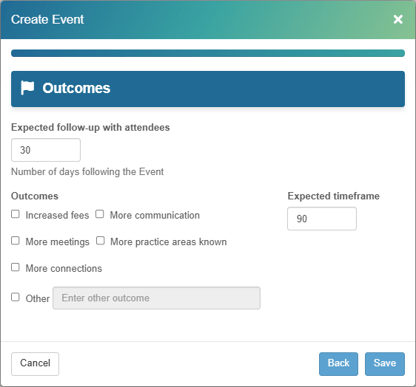
Expect follow-up with attendees: This setting allows you to configure a number of days after which you would expect the hosts to have followed up with each of the attendees.
Outcomes: Used to track which outcomes you and the hosting partners, lawyers or accountants would like to see following the event.
💲Increased fees: Required fee integration with your financial system. Used to show any change in fees for those companies with people attending.
📨More communication: A change in the amount of email communication back and forth between the firm and attendees.
📆More meetings: A change in the number of meetings the firm has with the attendees.
📈More practice areas known: A change in the number of different practices areas in contact with the attendees.
👫More connections: A change in the number of different people from the firm in contact with the attendees.
❓Other: Some other outcome you would like to note and keep on record for this event.
Expected timeframe: The number of days before you would expect to start seeing any of these outcomes transpire. - Click Save.
Other Event related Articles:
Tracking and managing event registrations
Sharing upcoming Events with the firm (and what they see)
Viewing post-event engagement (Event ROI)
Frequently Asked Questions (FAQs)
-
How do I get access to the Events Module?
The module is currently in early access. Please let us know if you would like to take part in the testing and our team can co-ordinate the update required to provide you with the new module.
-
I don't use HubSpot. Can I still use the Events Module?
Absolutely. Today we have integration with the Marketing Events capability of HubSpot and will add other systems, however even without any integration, you can easily import and manage registrations in bulk with very little effort. -
The Clone Event button isn't working. Is that a bug?
Clone Event is not deployed in the current pre-release version but will be added. Once added you will be able to clone / copy the settings (and attendees) from existing Events to recreate a similar event with fewer steps. -
Does a Contact need to exist in Client Sense for them to be a registered attendee?
No. New registrants will be automatically added to Client Sense when they register or you add them to an Event, even if the firm has never had contact with them before. -
Can I analyze events that happened before we started using the module?
Yes. You can import historical attendee lists to review past events retrospectively. This is a very valuable way to assess the effectiveness / Return on Investment (ROI) on prior events.